Troubleshooting Emotn Store: The Ultimate Fix-It Guide
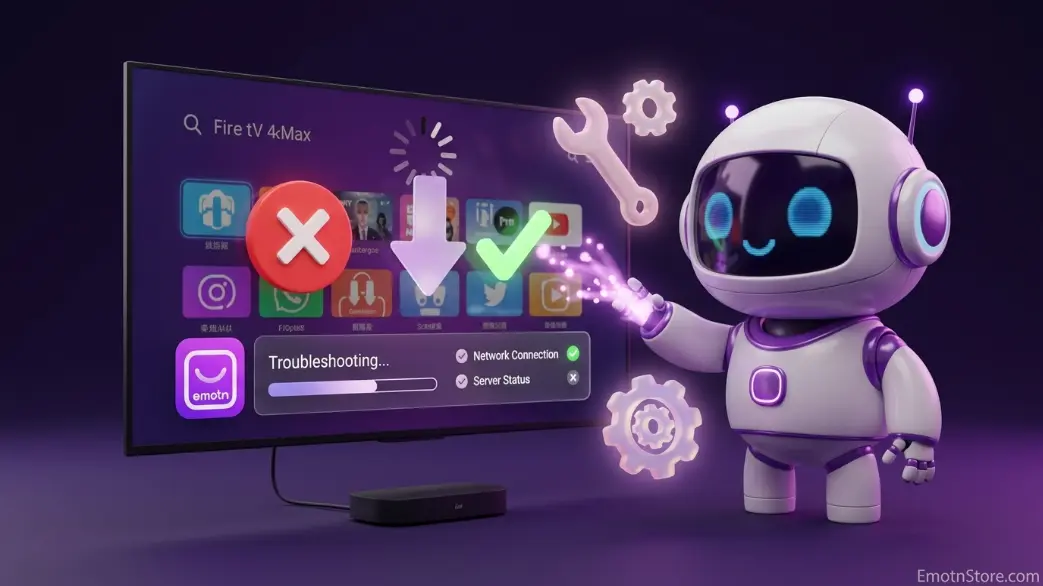
Technology is amazing when it works, but we all know how frustrating it is when it doesn't. Whether you're seeing a mysterious "Parse Error," an "App Not Installed" message, or just slow download speeds, don't worry—you’re not alone.
I’ve compiled the most common roadblocks users face and, more importantly, the exact steps to fix them. Let’s get your Emotn Store back to 100% so you can get back to enjoying your favorite content.
Drum1. "App Not Installed" (The most common error)
This error is frustratingly vague, but it usually comes down to three specific reasons:
- Insufficient Storage: Android TV devices often have very limited internal memory (usually 8GB). If you have less than 500MB free, the installer will fail. **Solution:** Go to Settings > Storage and delete unused apps or clear "Cached Data."
- Architecture Mismatch: You might be trying to install a 64-bit app on a 32-bit TV box. **Solution:** Look for "arm-v7a" versions if "arm64-v8a" fails.
- Existing Conflicts: An older version of the app might be corrupted. **Solution:** Uninstall the current version completely before trying to reinstall from Emotn Store.
Pro Tool: Use the built-in "Clean" feature inside Emotn Store to purge temporary files that might be blocking new installations.
2. Dealing with "Parse Errors"
A "Parse Error" occurs when the Android system can't read the APK file. This is usually due to a corrupted download or an OS version conflict.
- Check your OS version: Emotn Store requires Android 5.0 or higher. If you are on Android 4.4 (KitKat) or older, the APK won't "parse."
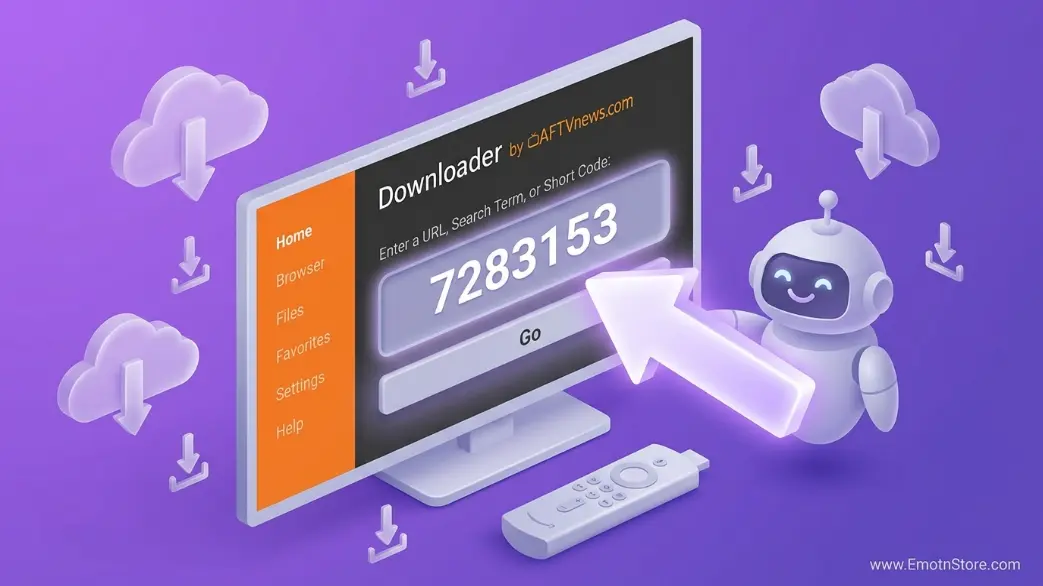
- Re-download: Delete the current APK and download it again using the 7283153 code to ensure the file wasn't corrupted during the first attempt.
3. Solving "Slow Download" Issues
If the progress bar is moving like a snail, it's rarely our server's fault. Our CDN is global. Here's what to check:
- WiFi Interference: TVs are often placed behind furniture which blocks signals. If possible, use an Ethernet cable for the most stable downloads.
- VPN Conflict: Sometimes, a slow VPN server can throttle your speed. Disable your VPN temporarily to see if the download speed improves.
The fastest fix for most issues is re-installing the latest version.
Conclusion
Most issues on Android TV can be solved by simply clearing your cache or freeing up a little bit of space. If you've tried everything and still face issues, don't hesitate to reach out to our community forums for help from fellow enthusiasts!